This guide walks you through the end-to-end flow for retrieving and booking third-party inventory (TPI) rates using the Demand API.
This guide covers the full end-to-end booking flow (Search, look and book integration), explaining how to:
- Filter for TPI-eligible products in your accommodations/search call.
- Understand the response fields that indicate TPI rates availability.
- Avoid common pitfalls such as multi-room requests or unsupported payment methods.
- Display returned TPI rates in your application.
- Offer the supported payment method to initiate the booking.
You can use TPI rates with either Sell or Net business models, depending on your integration setup.
Before integrating TPI rates, ensure your setup meets the following requirements:
Checklist | ||
|---|---|---|
| ☑ | Version |
|
| ☑ | Authentication |
|
| ☑ | TPI eligibility |
|
To support the full booking experience, follow these steps:
Search & look flow:
- Search for eligible properties using the accommodations/search endpoint.
- Look up availablity, pricing and policies at accommodations/availability endpoint.
- Display TPI rates to your travellers.
- Show the retrieved TPI rates to your travellers in your booking flow.
- Then, redirect to Booking.com to complete the booking or jump to step 4 and 5 if you are integrating a full booking flow.
Book:
- Preview the booking with the order/preview endpoint.
- Use the order/create endpoint to finalise and confirm the booking.
→ Call the accommodations/search endpoint with the following key parameters:
Search request | Description | |
|---|---|---|
| ✓ | "number_of_rooms": 1 |
|
| ✓ | payment.credit_card_required: true |
|
| ✓ | extras: ["products"] |
|
- For Net rates - use the dedicated Affiliate ID provided for your TPI integration in the API calls (Using your regular Affiliate ID may result in authentication errors)
- For Sell rates - use your regular Affiliate ID in the endpoint calls.
You can optionally apply the following filters in your request:
pay_online- payment timing to retrieve only properties with TPI rates (pay_online_lateris not supported for TPI)Note: This may reduce availability since it will only retrieve properties with the cheapest rates.
Other standard search filters such as
checkin,checkoutandcity. See the Filtering guide for examples and best practices.
{
  "booker": {
    "country": "nl",
    "platform": "desktop"
  },
  "checkin": "2025-07-22",
  "checkout": "2025-07-25",
  "city": -2140479,
  "extras": [
    "products"
  ],
  "payment": {"timing": "pay_online", "credit_card_required": true },
  "guests": {
    "number_of_adults": 2,
    "number_of_rooms": 1
  }
}The API response returns a list of available TPI rates with the best price for your search criteria (one room, pay online now, etc.)
Look for the following fields to identify them:
Field | Description |
|---|---|
product.id |
|
payment.prepayment_required:true |
|
payment.timings: ["pay_online_now"] |
|
third_party_inventory: true |
|
inventory.type: sell or inventory.type: net |
|
{
  "id": 1004657,
  "currency": "EUR",
  "price": {
    "book": 913.06,
    "total": 913.06
  },
  "products": [
    {
      "id": "tpi-52d4d2944c2739bc83ebb8b57f734850",
      "payment": {
        "prepayment_required": true,
        "timings": ["pay_online_now"]
      },
      "price": {
        "book": 913.06,
        "total": 913.06
      },
      "third_party_inventory": true,
      "inventory": {
        "third_party": true,
        "type": "sell"
      }
    }
  ]
}Here's an example of a search response with TPI/Net rates:
{
  "request_id": "01jwb2mmsg7tc2rn56m8p2pprx",
  "data": [
    {...},
      "products": [
        {
          "id": "tpi-931a79b7a790d7c3e55ce5029326573c",
          "children": [],
          "deal": null,
          "number_available_at_this_price": 1,
          "number_of_adults": 2,
          "policies": {
            "cancellation": {...},
            "meal_plan": {...},
            "payment": {
              "prepayment_required": true,
              "timings": [
                "pay_online_now"
              ]
            }
          },
          "price": {
            "book": 745.23,
            "total": 745.23
          },
          "room": 937191701,
          "third_party_inventory": true,
          "inventory": {
            "third_party": true,
            "type": "net"
          }
        }
      ],
      "url": null
    },
Demand API does not retrieve URLs (or deep link URL) for TPI products in the search response. You will find these in the next step, in the accommodations/availability response.
→ Use the accommodations/availability endpoint for availability and prices in specific properties.
- Include the desired accommodation ID and same details returned from the search request to provide real-time information about availability, rates and applicable policies.
- The response returns a list of available products with TPI rates.
You can check availability for multiple accommodations in a single request using the accommodations/bulk-availability endpoint.
Note that this endpoint currently supports Sell rates only.
This example shows a product with Sell rate with both, the deep_link_url and url to Booking.com landing page.
{
  "request_id": "01j6en0kkx6ve7eyd8nmh6knaz",
  "data": {
    "id": 2489623,
    "currency": "EUR",
    "deep_link_url": "booking://hotel/2489623?affiliate_id=1234567&checkin=2025-12-15&checkout=2025-12-18",
    "products": [
      {
        "id": "tpi-f621534d2037f346ff4b80c090072866",
        "deal": null,
        "inventory": {
          "third_party": true,
          "type": "sell"
        },
        "maximum_occupancy": {
          "adults": 3,
          "children": null,
          "total": 3
        },
        "number_available_at_this_price": 1,
        "policies": {
          "cancellation": {
            "free_cancellation_until": "2025-12-13T16:59:59+00:00",
            "type": "free_cancellation"
          },
          "meal_plan": {
            "meals": [],
            "plan": "no_plan"
          },
          "payment": {
            "prepayment_required": true,
            "timings": [
              "pay_online_now"
            ]
          }
        },
        "price": {
          "book": 58.03,
          "total": 58.03
        },
        "room": 248962301,
        "third_party_inventory": true
      },
      ...
    ],
    "recommendation": null,
    "url": "https://www.booking.com/hotel/th/kallapangha-resort.html?aid=1234567&checkin=2025-12-15&checkout=2025-12-18&no_rooms=1&group_adults=1&selected_currency=EUR"
  }
}The response includes the list of TPI products with Net rates together with the best_available_price- This field is only included for TPI Net rates.
Refer to the Net rates guide for more details about the best_available_price field.
{
    "request_id": "01jwb627s8xa1s24ztkg6acgbe",
    "data": {
        "id": 547336,
        "currency": "EUR",
        "deep_link_url": "booking://hotel/547336?affiliate_id=2373042&checkin=2025-07-10&checkout=2025-07-11",
        "products": [
            {
                "id": "tpi-ae0c08d5985957f8bb241f06d0891a81",
                "deal": null,
                "inventory": {
                    "third_party": true,
                    "type": "net"
                },
                "maximum_occupancy": {
                    "adults": 2,
                    "children": null,
                    "total": 2
                },
                "number_available_at_this_price": 1,
                "policies": {
                    "cancellation": {
                        "free_cancellation_until": null,
                        "schedule": [
                            {
                                "from": "now",
                                "price": 47.33
                            }
                        ],
                        "type": "non_refundable"
                    },
                    "meal_plan": {...},
                    "payment": {
                        "prepayment_required": true,
                        "timings": [
                            "pay_online_now"
                        ]
                    }
                },
                "price": {
                    "book": 47.33,
                    "total": 47.33
                },
                "best_available_price": {
                    "total": 52.44
                },
                "room": 54733603,
                "third_party_inventory": true
            },
        ],
        "recommendation": null,
        "url": "https://www.booking.com/hotel/th/sunchine-paradise-resort.html?aid=2373042&checkin=2025-07-10&checkout=2025-07-11&no_rooms=1&group_adults=2&selected_currency=EUR"
    }
}
On Booking.com’s platforms, TPI rates are displayed as “Partner Offer”.
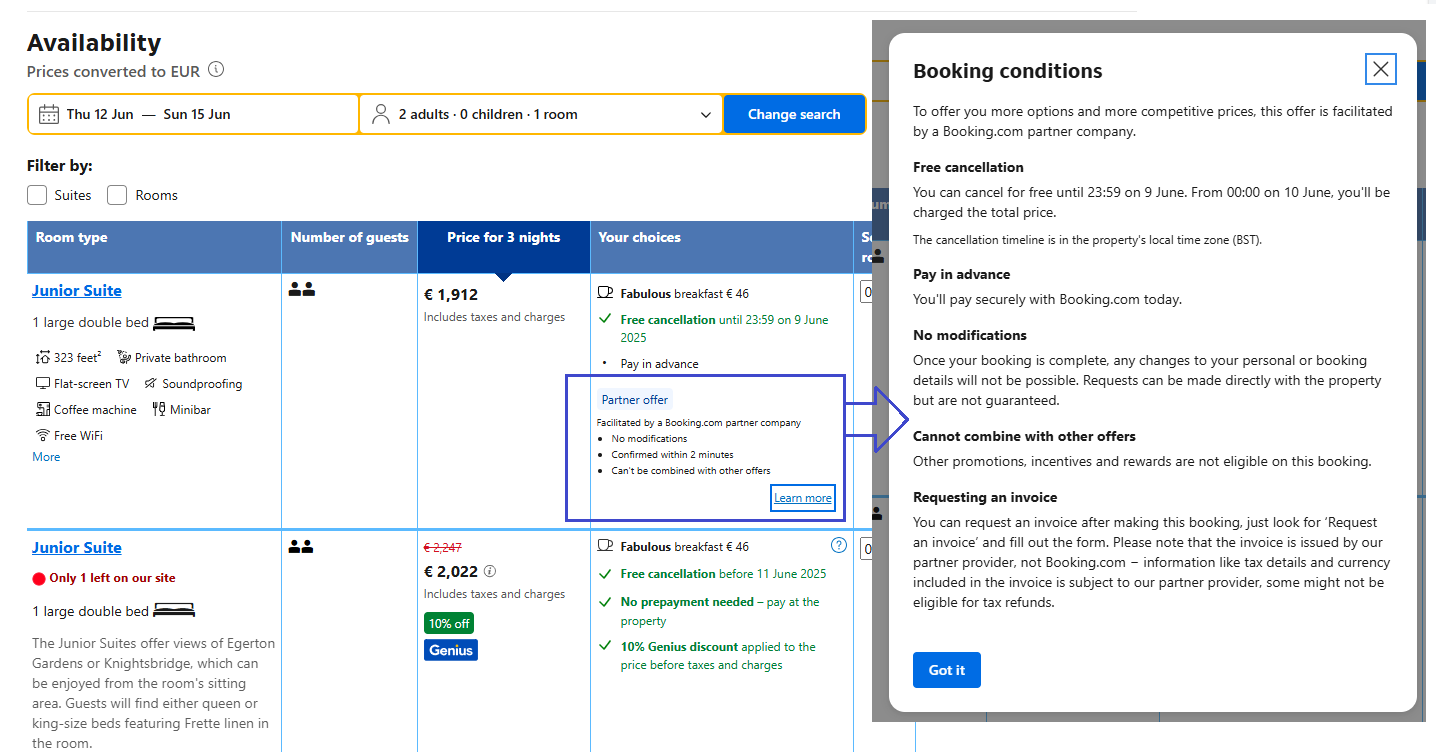
However, to display TPI rates effectively in your platform make sure you adhere to the following terms:
- Do not refer to TPI products as “Third Party Inventory” or “Partner Offer” in your own interface.
- You must agree on a marketing label with your Booking.com Account Manager before going live.
→ Use the orders/preview endpoint to validate the selected product and retrieve final booking details, including pricing, policies, and payment options.
See the Create orders guide for best practices on constructing your orders/preview request.
This is an example response from the orders/preview endpoint. It includes cancellation policies, pricing, and third-party inventory indicators.
{
  "products": [
    {
      "id": "1000420_278556531_2_0_0",
      "deal": null,
      "policies": {
        "cancellation": [
          {
            "from": "now",
            "price": {
              "accommodation_currency": 0,
              "booker_currency": null
            }
          },
          {
            "from": "2025-08-22!T22:00:00+00:00",
            "price": {
              "accommodation_currency": 177.65,
              "booker_currency": null
            }
          }
        ],
        "meal_plan": {
          "meals": [],
          "plan": "no_plan"
        }
      },
      "price": {
        "total": {
          "accommodation_currency": 186.92,
          "booker_currency": null
        }
      },
      "third_party_inventory": true
    }
  ]
}
→ Use the orders/create endpoint, to finalise the booking and initiate the payment process.
Include the correct payment method in your request.
- Net rates - VCC payment.
- Sell rates - Credit Card (or VCC).
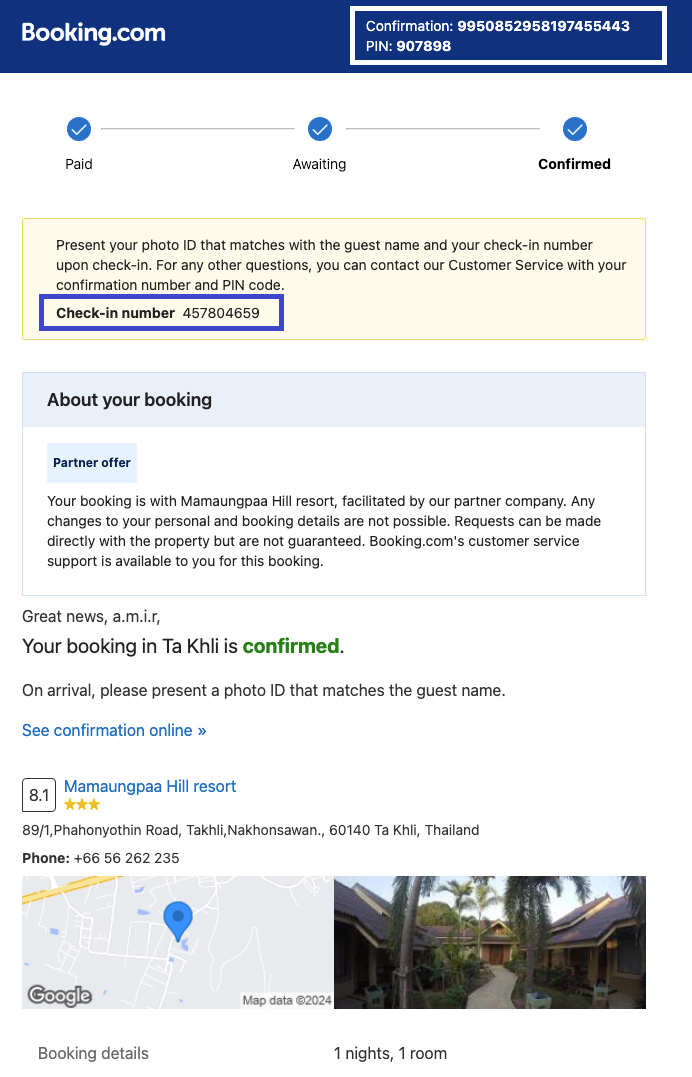
A successful response returns key booking identifiers and third-party inventory confirmation and checkin numbers.
Display these fields clearly in your platform confirmation screen and messages.
This orders/create response includes confirmation details, including order, pincode, and third-party inventory identifiers required for guest check-in.
{
  "request_id": "01j69mtd91x3pdcmqyj0spebt9",
  "data": {
    "payment": {
      "receipt_url": "https://secure.booking.com/payment_receipt.html?product_type=BookingBudget&aid=2373042&auth_key=8riKJJ0XuxDhk4ds&lang=en",
      "authorisation_form_url": null
    },
    "accommodation": {
      "order": "509430129718799",
      "pincode": "0000",
      "reservation": 12345678,
      "third_party_inventory": {
        "checkin_number": "123456789",
        "confirmation_number": "12345678912345678912"
      }
    }
  }
}
| order |
|
| pincode |
|
| reservation |
|
| checkin_number |
|
| confirmation_number |
|
Example of Booking.com confirmation message for a third-party inventory booking (Partner offer), with pincode, confirmation and checkin number:
✓ Always validate bookings with /orders/preview before calling orders/create.
✓ Always show cancellation policies to the user before confirming the booking.
✓ Check that supported payment methods are accepted by the product:
- VCCs for Net rates.
- Credit cards and/or VCC for Commissionable TPI rates.
✓ Display both the checkin_number and confirmation_number on confirmation screens and messages.
If TPI rates are not returned in your search or availability requests, this may be due to:
| Issue | Suggested action |
|---|---|
| Multi-room search | Switch to single-room search. |
| You are not onboarded for TPI or using the wrong Affiliate ID | Contact your Booking.com Account Manager to verify your onboarding status. Use the correct Affiliate ID:
|
extras field missing or not including products | Ensure your request includes extras: ["products"]. |
| 500 error when cancelling | Check if the policy is non-refundable. Check the cancellation policy before using /orders/cancel. |
| Invalid payment method error | Check that your integration supports VCC for Net rates or Credit cards for Sell rates. |
| VCC not accepted | Include credit_card_required:true in the payment object of your request. |
For post-booking tasks guidelines, reporting TPI rates, or cancelling TPI bookings, refer to the Post-booking dedicated guide.
- Error handling guide - See common client errors, examples and best practices.
- Orders section – Understand how to manage orders, retrieve booking details, and handle cancellations.
- Payments quick guide – Review how
pay_online_now, Credit Cards and VCC work.
Learn more about how TPI works across different business models:
